
Appearance
Brand rules from your ads: turn the ads that look like you into guidelines
Nexus reads the ads you already run and suggests image and copy rules for your brand guidelines. Find it in Settings > General > Brand Identity, in the Image guidelines and Copy guidelines sections, and in the setup wizard.
Problem and intended user
You run ads for your brand, and some of them look more like you than others. Nexus generates new ads from your brand guidelines. When the guidelines are empty or vague, new ads can drift from your look and your voice, and you spend time correcting them. This is for the founder, brand manager or marketer who knows the brand by eye but never wrote it down.
Current workflow
Without Nexus, you look through your ads in Meta Ads Manager or Google Ads and note what the good ones share. You write those notes as rules in a brand book or a shared document. Then you copy the rules into each brief and each tool, and you update them by hand when your ads change.
Prerequisites
- Ads of your own that Nexus has already found, for example in a connected ad account. See Integrations.
- Image ads. Nexus lists your video ads, but it cannot use them for rules. It does not list your Performance Max asset groups.
- For Refresh from winning ads: a connected ad account with enough winning ads. See Winning criteria.
How Nexus works
Nexus reads the image and the copy of each ad you choose. It notes traits such as the visual style, whether people or the product show, text on the image, the tone, the call to action and the offer. Fixed rules then count the traits:
- A trait that most of your This is us ads share becomes a do.
- A trait that most of your Not us ads share becomes a don't.
- A trait that none of your This is us ads have can become a don't too. Nexus shows it unticked, so you decide.
AI then writes each rule as a plain sentence. It does not choose which rules you get.
Nothing reaches your guidelines until you review the rules and save them. A usage limit applies to each build and each refresh.
Warning: Nexus uses only the ads it has already found. Nothing on this page starts a search for your ads. While Nexus is still looking, Build from my ads is greyed out and the page says "Nexus is still looking for your ads. Check back in a few minutes."
Build rules from the ads you pick
- Go to Settings > General > Brand Identity and open Image guidelines or Copy guidelines.
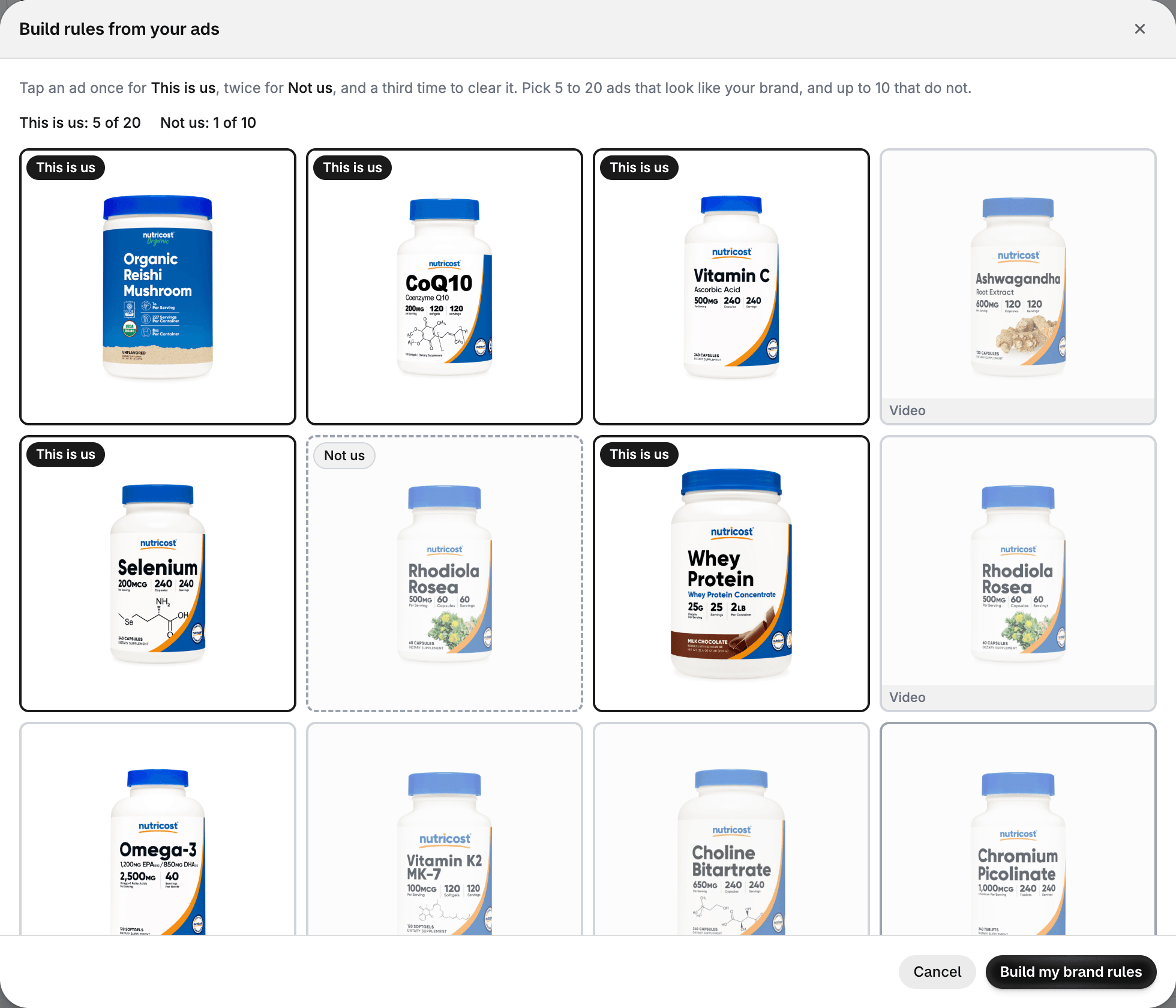
- Click Build from my ads. A window shows your ads, longest-running first.
- Tap an ad once for This is us, twice for Not us, and a third time to clear it. Pick 5 to 20 ads that look like your brand, and up to 10 that do not.
- Click Build my brand rules.
- Read each rule. Untick the ones that do not fit your brand. If Nexus lists rules under No longer found in your ads, tick Remove next to each one you want to drop. To change your picks, click Back to the ads.
- Click Add to guidelines.
- Click Save in the save bar.
Refresh the rules from your winning ads
- In Image guidelines or Copy guidelines, click Refresh from winning ads.
- Read each rule from your winning ads. Untick the ones that do not fit.
- Under No longer found in your ads, Nexus lists rules it added from your ads before that it no longer finds. They show struck through. Tick Remove next to each one you want to drop.
- Click Add to guidelines, then click Save in the save bar.
Build rules during setup
In the setup wizard, the step The direction asks what your first ads should be like. When you pick Similar to my current ads, the next step is Your brand rules. It comes before Nexus makes your first ads, so Nexus uses the rules you save for those ads.
When you install Nexus, it looks for the ads your brand runs on Meta. It finds them by your brand name, so some ads may belong to another business. The step says "Ads we found that may be yours. Pick the ones that are, and mark the rest Not us."
- Pick your ads the same way as on the page, then click Build my brand rules.
- Read the rules and untick the ones that do not fit. A rule that your guidelines already hold starts unticked.
- Click Save to my brand. Nexus saves the rules to your guidelines at once. When there is no new rule to add, the button reads Keep my current rules.
- Press Next.
While Nexus is still looking for your ads, the step says Finding your ads… and counts the ads it has read, for example "2 of 5 analyzed". When it finds too few, the step offers Connect Meta Ads and Connect Google Ads.
To move on without rules, click Continue with new creatives, or None of these are mine if the ads are not yours. See The setup wizard, step by step.
Exact output
The review lists the rules under Image rules and Copy rules, each split into Do's and Don'ts. Under each rule, a line says how often your ads show it, for example how many of the ads you marked as yours share it. A rule that your guidelines already hold starts unticked, and its line says so. A count at the bottom says how many rules you selected.
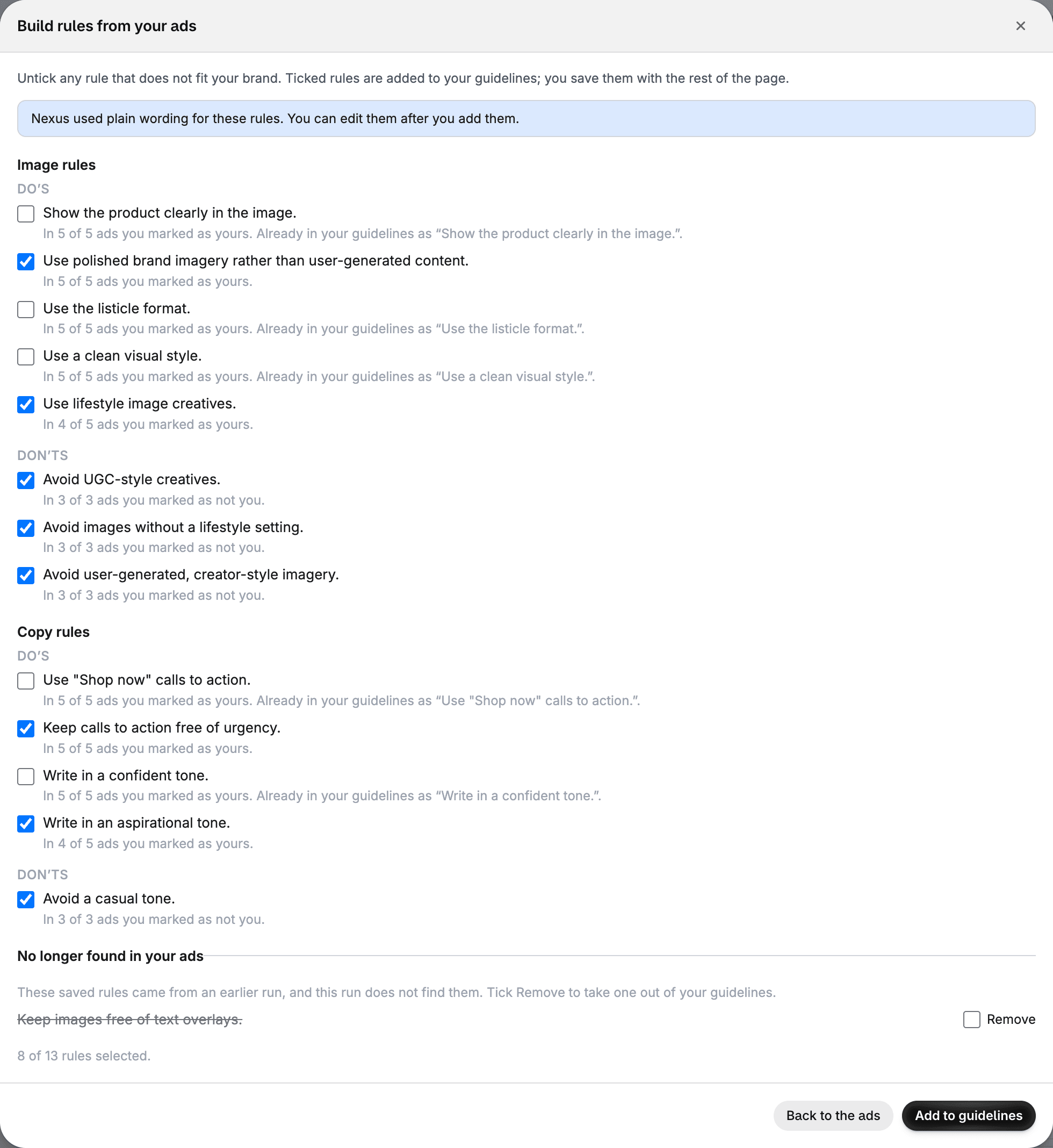
After you click Add to guidelines, a line under the buttons says how many rules Nexus added and removed, and reminds you to save. The new rules appear in the Do's and Don'ts lists.
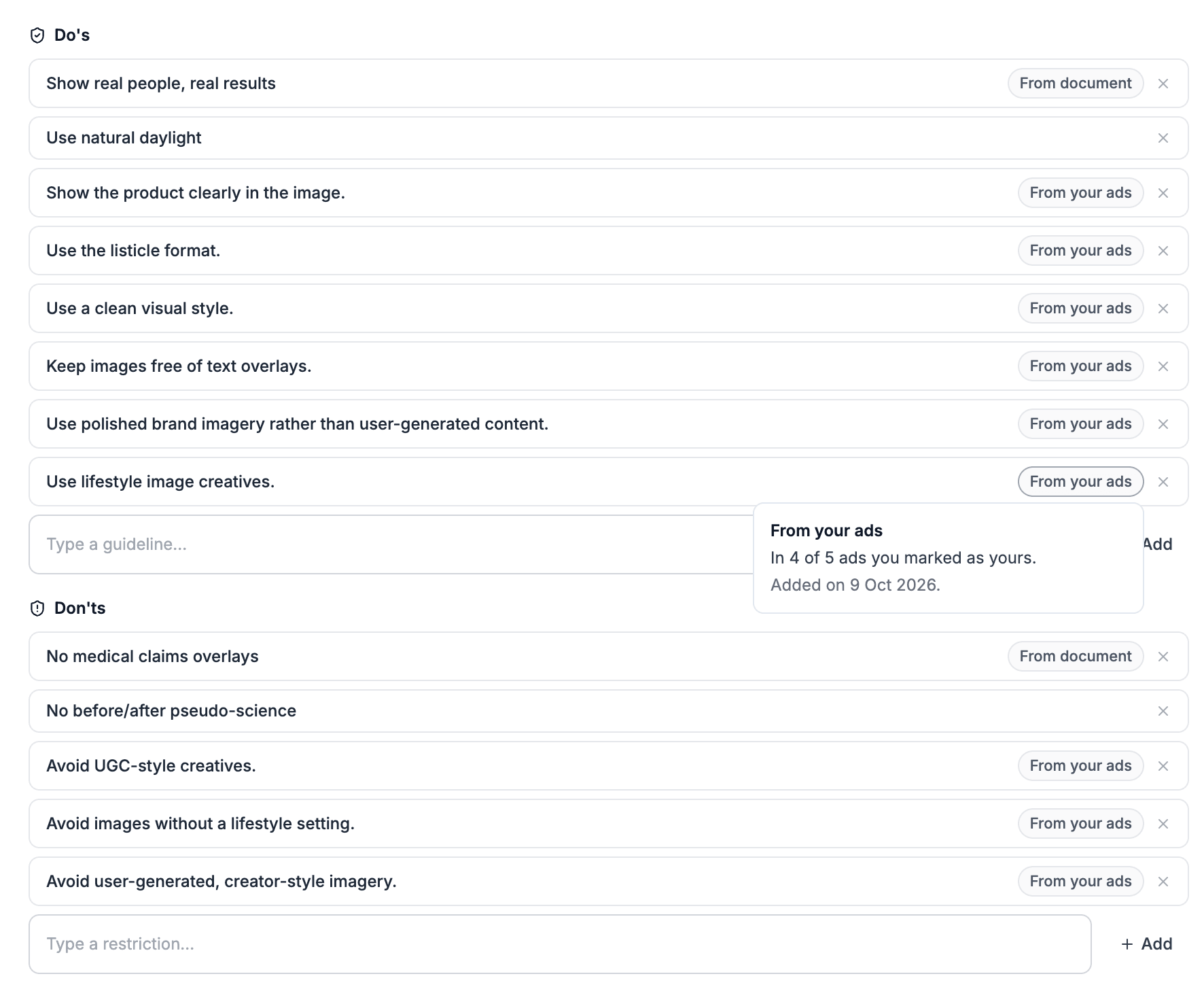
Each rule that Nexus added shows where it came from:
| Label | Where the rule came from |
|---|---|
| From your ads | The ads you marked in the grid. |
| From winning ads | Your winning ads. |
| From document | A file you added with Extract from document. |
Rules you wrote yourself show no label. Click From your ads or From winning ads to see the evidence line and the date Nexus added the rule.
In the setup wizard, the step Your brand rules says how many rules it saved. You can edit them later in Settings > General > Brand Identity.
What to do with it
| What you see | Decision or action | Owner |
|---|---|---|
| A do or a don't in the review | Keep it ticked if it fits your brand. Untick it if it does not. | Brand manager |
| A rule that says it is already in your guidelines | Leave it unticked. You have it. | Brand manager |
| A rule under No longer found in your ads | Tick Remove if your ads moved away from it. | Brand manager |
| A rule labelled From your ads or From winning ads | Edit the wording into your own voice. | Copywriter |
| Few rules, or none | Pick more ads that look alike, then build again. | Marketer |
| The saved rules | Generate new ads and check that they follow the rules. See Generate a creative batch. | Performance marketer |
Expected value and measurement
With clear rules, the ads that Nexus generates can match your look and your voice more closely. You may then edit or drop fewer drafts.
To check, compare how many drafts you keep in the Creative Wizard before and after you add the rules. Look at the same kind of product in both batches. The effect cannot be isolated when you also changed other brand settings, such as your colors or tone of voice, at the same time.
Limitations and exceptions
- Nexus can use only image ads. Video ads show in the grid but cannot be picked.
- Performance Max asset groups do not show in the grid and do not count as winning ads. An asset group has no single image or copy of its own, so Nexus cannot read rules from it.
- When Nexus has found none of your ads, the Build from my ads and Refresh from winning ads buttons do not show. In the setup wizard, the step Your brand rules still shows. It offers Connect Meta Ads, Connect Google Ads, Check again and Continue with new creatives.
- Nexus finds the ads in the setup wizard by your brand name. When another business has a similar name, some of the ads may not be yours. Mark them Not us, or click None of these are mine.
- When there are too few ads to pick from, Build from my ads does not show.
- Refresh from winning ads shows only when your connected account has enough winning ads. If the count drops before you click, Nexus says how many winning ads it needs and how many it found.
- AI writes the wording, and it can be wrong. Read each rule before you add it.
- When the AI step fails, Nexus uses plain wording and says "Nexus used plain wording for these rules. You can edit them after you add them."
- When your ads share too little, the review says "Nexus found no rule that enough of these ads share. Pick more ads that look alike, then try again." or "Your ads were too varied for Nexus to find more rules."
- When you reach the usage limit, Nexus says "Nexus is busy with your earlier requests. Wait a few minutes, then try again."
- When an ad you picked in the setup wizard is no longer available, the step says "Some of these ads are no longer available. Your other picks are kept." Click Build my brand rules again.
- When your brand settings change while you pick in the setup wizard, the step says "Your brand settings changed while you were picking. Save again to add the rules to the latest version." Click Save to my brand again.
- A label belongs to the exact wording of a rule. When you edit a rule, its label goes, and Nexus treats the rule as one you wrote.
- Some of the ways Nexus makes images read only a limited number of rules from the top of the Do's and Don'ts lists in Image guidelines. Nexus adds rules from your ads at the end of a list, so on a long list the last rules may not reach every image. To keep each list short, remove the rules you no longer need.
- In Demo Mode, the rules always use plain wording, and the review always shows the note about it.