
Appearance
Performance Score weights: choose what counts in the score
The Performance Score weights panel sets how much each of ten signals counts towards every product's Performance Score. It previews the effect on one product before you save. Open it from a Performance Score in Insights > Products, on a product's page or in the Creative Wizard.
Problem and intended user
The ecommerce manager (the person who runs the store) uses the Performance Score to choose which products to push, fix or drop. The default mix of signals does not fit every store. A store with no NPS survey, or one where most shoppers use site search, sees products ranked on signals that matter little to it. The quadrants and the product order then point at the wrong products.
Current workflow
Without Nexus, a merchant who wants a different mix builds it in a spreadsheet. They export orders from Shopify admin reports, ratings from the review app's own dashboard and search data from GA4. They score each signal, weight the columns by hand and sort again after every change.
Prerequisites
- Nexus has scored your products at least once.
- The data behind the signals you want to count. The CX signals need a review app or NPS data. Site search and View-to-cart rate need GA4. See Review apps and CSV import and Google Analytics 4.
How Nexus works
The Performance Score blends ten signals in three groups: Behavior, CX and Demand. Each signal has a weight, and the ten weights always total 100%. A group's weight is the total of its signals. Fixed scoring rules, not AI, compute the score. See Product scores.
The preview replays your last scoring run with the weights you try, using the same rules as a recompute. Your weights apply to every product in your shop and to every page that shows the Performance Score.
Open the weights
Select a product's Performance Score, an Adjust weights link, or the sliders icon beside a Performance header, Adjust Performance Score weights. Product List, Quadrant Overview, Relationships, JTBD Insights, Catalog Health, Product detail and Generate a creative batch say where each one is. Adjust weights also sits under the summary card of Product List, under the Performance Score gauge on Product detail, and under Analysis in the Update data menu on Insights > Products. On Quadrant Overview, a score in the Performance column of the Gateway Products card opens the panel too. When you filter Quadrant Overview by a category, the Performance score on the Top Performer and Action Needed cards opens the panel too.
A product with no Performance Score shows a dash, or No score yet on Product detail. It opens nothing, because the preview has no score to show for it.
From a product, the preview shows that product. Otherwise it shows your top product, with the line "Highest Performance Score in your shop". When no product has a Performance Score yet, the preview says so instead.
Try new weights
- Move a slider. It moves in 0.5% steps from 0% to 100%. The other weights change in proportion to keep the total at 100%. A weight at 0% stays at 0% unless every other weight is at 0% too.
- Read the preview at the top of the panel. It updates after each move.
- To preview another product, select Preview product at the top of the panel and pick one from the list. Top product returns to your top product.
- To start again, select Reset to defaults.
Save and recompute
- Select Save and recompute at the bottom of the panel. Discard drops your changes. Both show under the line Unsaved changes while you have unsaved changes.
- Read the message "Recomputing Performance Scores", and keep working.
- When the recompute of every product finishes, scores, quadrants and product order update.
Until then, current scores use your previous weights, and the panel notes "Your saved weights apply when the next recompute finishes."
Closing the panel with unsaved changes asks "Discard your unsaved weight changes?" Select Keep editing or Discard changes.
Exact output
The Performance Score weights panel opens at the side of the page.
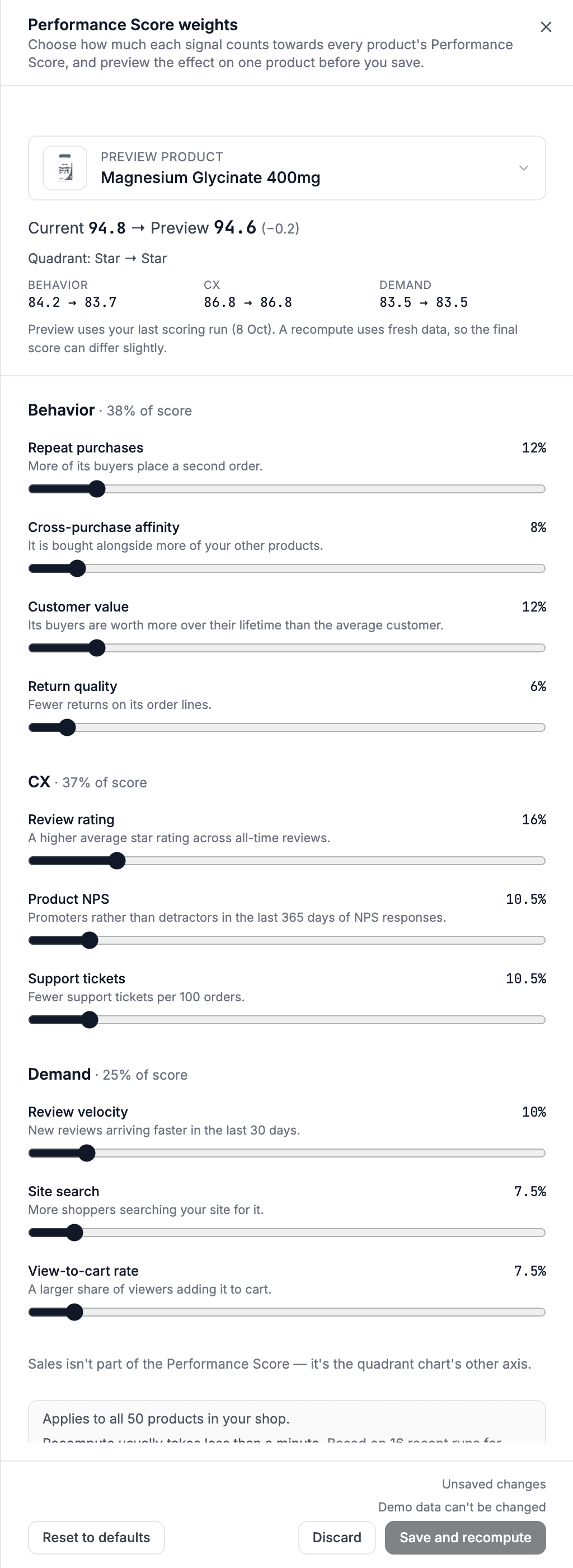
| Part | What it shows |
|---|---|
| Preview | Preview product, with the product's image and name. Select it to pick another product. "Current" and "Preview" scores with the change between them. The quadrant and the Behavior, CX and Demand scores, before and after. The date of the scoring run the preview uses. |
| Groups | A heading per group with its share of the score, for example "Behavior · 40% of score". Under it, a slider per signal with its value and a one-line hint. |
| Notes | How many products the change applies to, and how long a recompute usually takes for your shop. |
| Footer | Reset to defaults on the left. While you have unsaved changes, the right side shows Unsaved changes, the reason Save and recompute is off when it is, then Discard and Save and recompute. |
The ten signals and their default weights:
| Group | Signal | What raises the score | Default weight |
|---|---|---|---|
| Behavior | Repeat purchases | More of its buyers place a second order. | 12% |
| Behavior | Cross-purchase affinity | Bought alongside more of your other products. | 8% |
| Behavior | Customer value | Its buyers are worth more over their lifetime than the average customer. | 14% |
| Behavior | Return quality | Fewer returns on its order lines. | 6% |
| CX | Review rating | A higher average star rating across all-time reviews. | 14% |
| CX | Product NPS | Promoters rather than detractors in the last 365 days of NPS responses. | 10.5% |
| CX | Support tickets | Fewer support tickets per 100 orders. | 10.5% |
| Demand | Review velocity | New reviews arriving faster in the last 30 days. | 10% |
| Demand | Site search | More shoppers searching your site for it. | 7.5% |
| Demand | View-to-cart rate | A larger share of viewers adding it to cart. | 7.5% |
By default, Behavior counts 40%, CX 35% and Demand 25%.
Not counted
A group at 0% shows Not counted in its heading. For a product, a group shows Not counted when its weight is 0%, or when the product has no data for any signal you weighted in it. You see this in the preview, the Product List columns and the product page. The Performance Score leaves that group out and shares its weight among the other groups, so it never counts as 0 against the product. A group with no data at all shows a dash in the Product List and No score yet on the product page.
What to do with it
| What you see | Decision or action | Owner |
|---|---|---|
| A signal your store does not collect, such as Product NPS with no NPS survey | Set its weight to 0%. | ecommerce manager |
| A signal that drives your store, such as Site search | Raise its weight, preview a few products you know well, then select Save and recompute. | ecommerce manager |
| A product that changes quadrant in the preview | Check the new quadrant against what you know of the product before you save. | ecommerce manager |
| A new product order after the recompute | Review which products get ad budget. Run the ads in Meta Ads Manager or Google Ads, outside Nexus. | media buyer (the person who runs your paid ads) |
| The Performance column in the Creative Wizard on a run from a job | Pick products in the order your weights give. | creative strategist (the person who plans and makes ad creatives) |
Expected value and measurement
The weights can make the Performance Score and the quadrants rank your products on what matters in your store.
To check a change after the recompute:
- Compare the top of Insights > Products > Product List, sorted by Performance, with the order before.
- Compare the product count on each quadrant card in Insights > Products > Quadrant Overview.
- Over the following weeks, compare Revenue and Margin for the products you promoted, over equal periods.
Promotions, price changes and seasons run at the same time, so Nexus cannot isolate the effect of a weight change.
Limitations and exceptions
- The weights apply to the whole shop, not per collection, category or ad platform.
- Only the ten signals have weights. The panel says "Sales isn't part of the Performance Score — it's the quadrant chart's other axis." The angle Score in the Creative Wizard does not change.
- For one product, a signal with no data gives its weight to the other signals in its group.
- A recompute reads fresh data, so the final score can differ slightly from the preview.
The preview can show these messages:
| Message | What to do |
|---|---|
| "Scores have not been computed yet" | Wait until Nexus has scored your products. |
| "Recompute once to turn on previews" | Open Update data and choose Recompute scoring. Previews work after it finishes. |
| "This product has no Performance Score yet. Choose another product." | Select Preview product and pick another product. |
| "No product has a Performance Score yet." | Nexus needs order data before it can score products. The preview works once a product has a Performance Score. You can still move the sliders and save. |
| "Couldn't load the preview." | Select Try again. |
While Nexus scores your products, Save and recompute stays off and the panel says why, for example "A scoring run is in progress. You can recompute once it finishes." Save again when the run ends. If a run starts as you save, the panel reads "A scoring run is already in progress, so these weights can't be applied yet. Try again when it finishes."
If your weights save but the recompute cannot start, the panel says so. Select Recompute now to start it. If that fails too, the panel reads "Couldn't start the recompute. Try again."
In Demo Mode you can move the sliders and see the preview. Save and recompute stays off, with the reason "Demo data can't be changed".