
Appearance
Generate a creative batch with the Creative Wizard
The Creative Wizard builds a batch of ad images from an angle, a scene or a job, and the products you choose. This page walks you through the choices up to the Generate button.
Problem and intended user
The creative strategist (the person who plans and makes ad creatives) wants to test several ideas for a product, and each idea needs images. When images are hard to arrange, a store tests fewer ideas.
Current workflow
The creative strategist takes an idea from past results in Meta Ads Manager or Google Ads, then briefs an agency or a design tool. Someone pulls product photos from the Shopify admin and sends them along with the brief.
Prerequisites
- Your Shopify product catalog has finished syncing.
- Your store has at least one angle. If the list is empty, it reads "This website has no angles yet." While Nexus creates angles for you, the list reads "Generating angles for this website's top product — this takes a minute or two. The list updates by itself."
- Each product you pick has a photo the generator can use. A run from a job needs your store to have jobs.
- Generate does not use your credits, but Nexus limits how many runs you can start.
How Nexus works
You pick from the angles, scenes and jobs that Nexus holds for your store. Fixed formulas, not AI, score the angles and jobs. You choose a starting point and products, and AI image models then generate the images. Nothing reaches Studio until you use an image.
WARNING
Generate does not use your credits, but limits apply. In Demo Mode a banner says the wizard does not generate. You can walk through every choice, but Generate does not make a batch.
Open the wizard
Use any of these paths:
- Create > Creative Batches, then Generate Batch.
- Creative Wizard in Studio.
- The Creative Wizard card in the New Creative Set dialog.
A step rail shows where you are and how many items you picked.
Step 1: choose a starting point
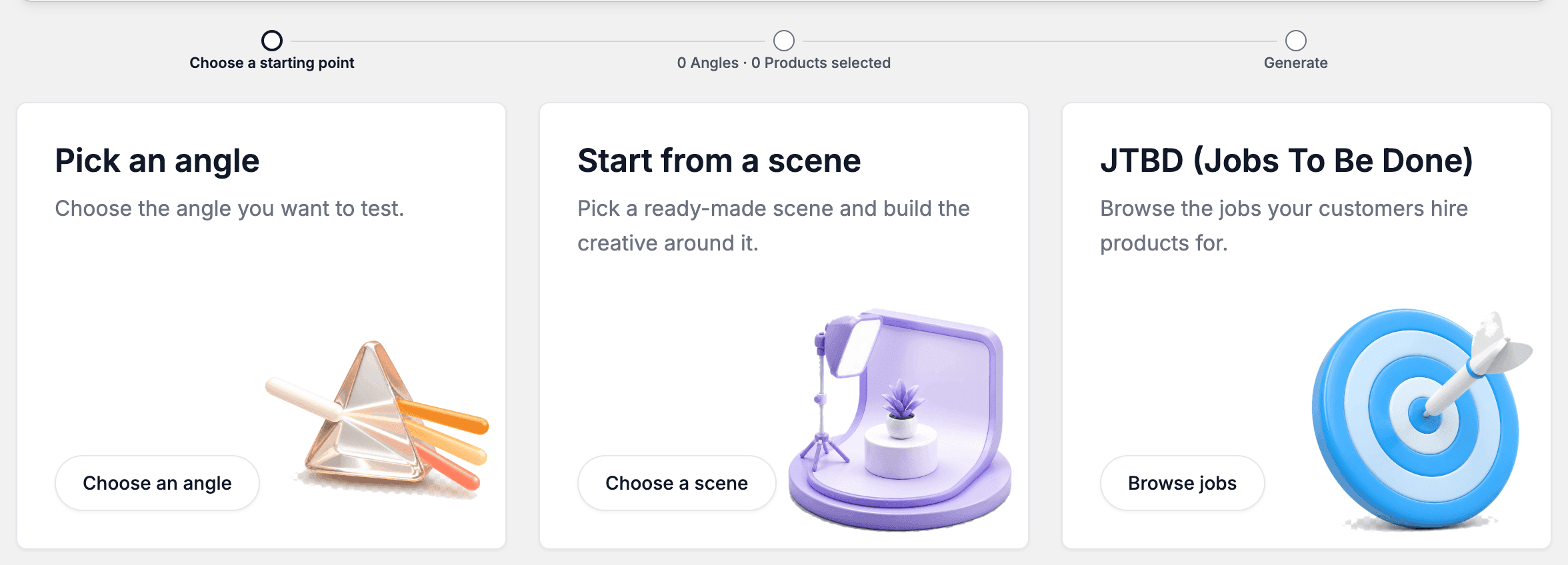
The first screen asks "What are you starting from?" Nexus asks this on every run and forgets your last answer. Select one of three cards:
| Card | Button | Use it when |
|---|---|---|
| Pick an angle | Choose an angle | You know the idea you want to test. |
| Start from a scene | Choose a scene | You want to build the creative around a ready-made scene. |
| JTBD (Jobs To Be Done) | Browse jobs | You want to start from the job a customer hires a product for. |
Step 2: pick an angle and products
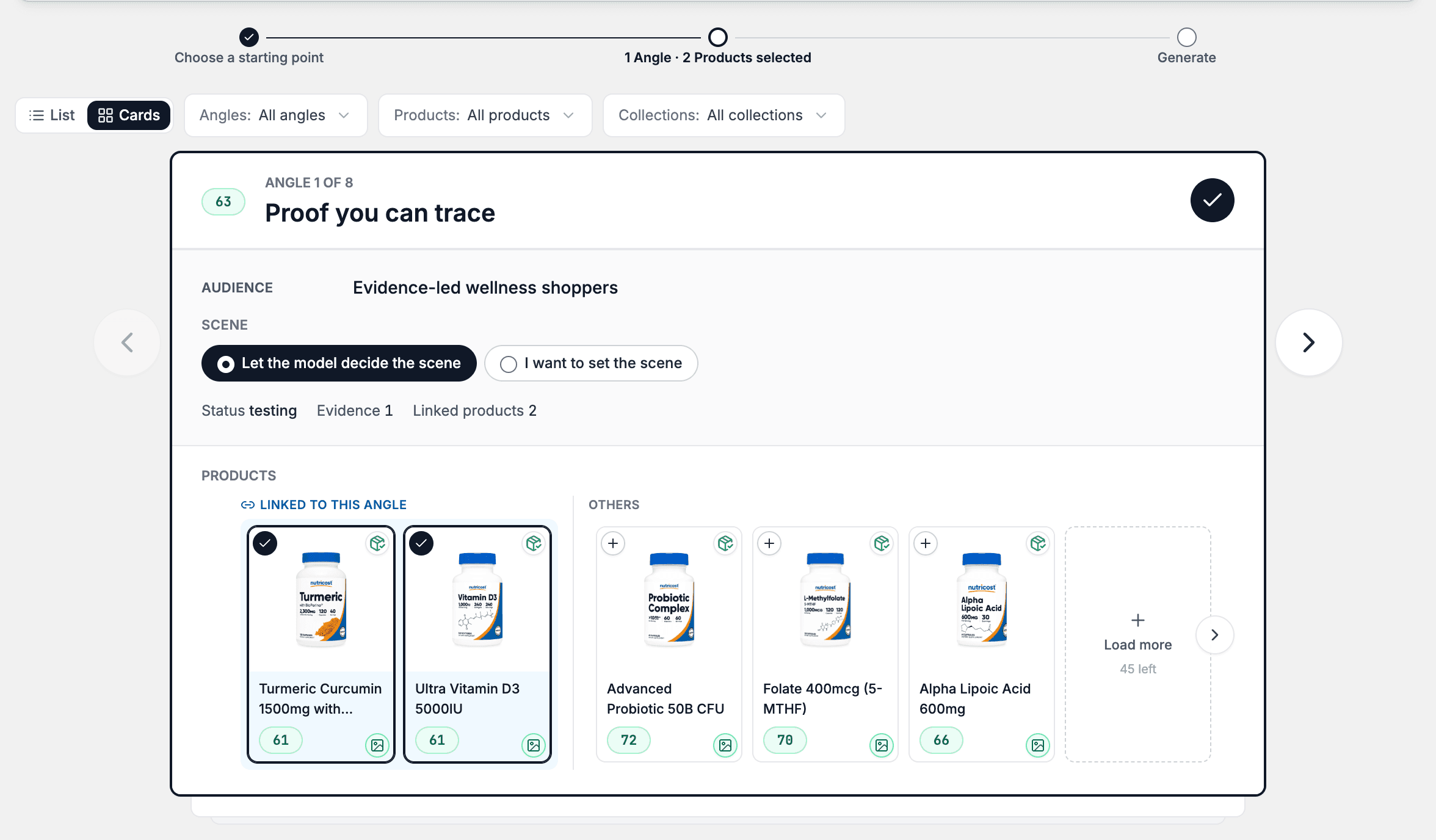
Choose Pick an angle. The heading reads "Choose an angle and products". You pick one angle per run, and its products, on the same screen.
- Browse the angles. Each shows a Score. The highest scores come first. This Score comes from your ads, not from the product Performance Score. It uses the last 28 days of ads linked to the angle, and each ad counts in proportion to its spend. A score above 50 means those ads made money. A score below 50 means they lost it. Switch between List and Cards to change the layout.
- Select one angle. If you select a different angle, it replaces the first.
- Choose products inside the angle card. The row lists the products linked to that angle, highest Score first. Here a product's Score comes from the angle's ads. Products not linked to the angle appear under Others.
- Choose your products. The step rail shows the tally, for example "1 Angle · 3 Products selected".
- Optionally, set the scene for the angle. Open the Scene line on the angle, then pick one of:
- Let the model decide the scene. This is the default.
- Choose from scenes, then one suggested scene. This option shows only when the angle has scenes.
- I want to set the scene, then type a description. The box says "Describe the scene — used for this run only".
- Select Continue to generate.
Above the angles, All angles, All products and All collections filter the list. The information icon with the label "How the performance score is calculated" explains the ad-based Score.
If Continue to generate is off, a hint beside it says what is missing, for example "Choose an angle and a product."
Start from a scene
Choose Start from a scene. The heading reads "Choose a scene and products". Each card is a ready-made scene built from your angles.
- Select one scene. It brings its angle along. You pick one scene per run.
- Choose your products.
- Select Continue to generate.
Scene cards show one at a time. Use the arrows to move between them.
Start from a job
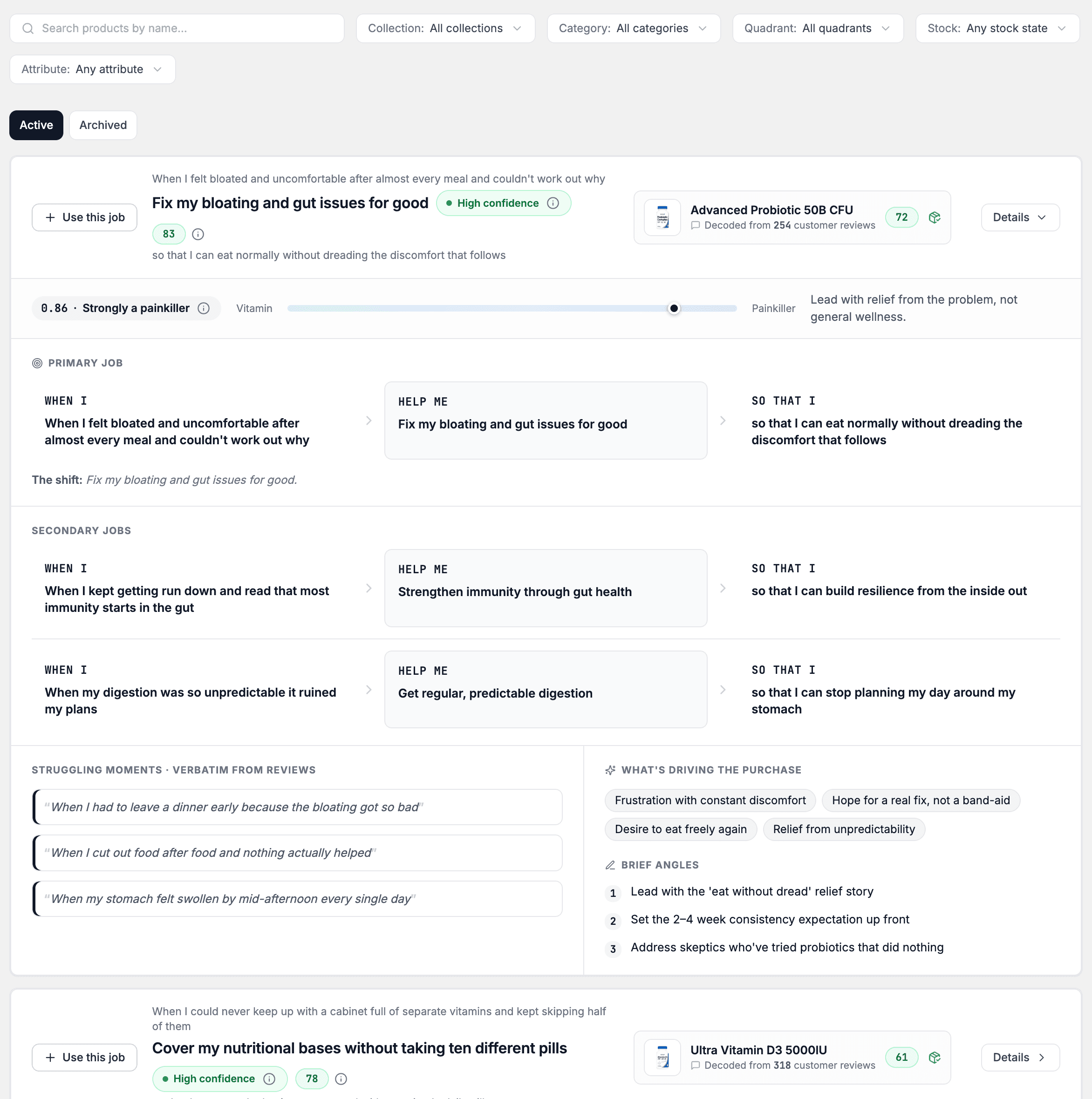
Choose JTBD (Jobs To Be Done). The heading reads "Choose a job to be done". The run uses the job story, so there is no angle step.
- Review the jobs, ranked by score. Use the search box, Collection, Category, Quadrant, Stock and Attribute to narrow the list. Switch between Active and Archived.
- Select Details on a card to read the job.
- Select Use this job on the job you want. The button changes to Selected.
- Select Continue to products.
- Choose up to 10 products. The heading and a counter such as "1 of 10 selected" show the limit. The job's own product is already selected. The Performance column shows each product's Performance Score, and the list is ranked by it, highest first. A product with no score yet shows a dash: Nexus has not scored it yet, or had no order data for it in its latest scoring run. To change what counts in the score, select a product's score or the sliders icon beside the Performance header, Adjust Performance Score weights. Performance Score weights opens.
- Select Continue to generate.
Step 3: generate and compare
The last step is titled "Generate and compare". Set the run options, choose the number of images per model, and press Generate. For the options, see Wizard run settings.
A run holds at least 4 images and at most 60. When the selection is too big or too small, Generate stays off and a message beside it says why. For a large run, choose fewer products, models or styles.
Exact output
The button reads Generate and the number of images, for example Generate 8 images.
Pressing Generate makes a batch. It shows in Create > Creative Batches, first as Running, then as Completed. The images appear in the wizard, one column per model. See Review and use batch results.
What to do with it
| What you see | Decision or action | Owner |
|---|---|---|
| Angles ranked by Score | Pick the angle to test. | creative strategist |
| Products ranked by Performance on a run from a job | Pick the products to show. To rank them on other signals, change the weights in Performance Score weights. | creative strategist |
| The image count on the Generate button | Check that the run holds the images you want, then press Generate. | creative strategist |
| A finished batch | Review it and choose Use selected. | creative strategist |
| Images in Studio | Turn them into ads, in Studio and your ad account, outside this page. | media buyer (the person who runs your paid ads) |
Expected value and measurement
The wizard can help you test several ideas for one product and compare image models on one prompt.
To check, read Images, such as 6/8, in Create > Creative Batches. After the ads run, read Spend and ROAS in Performance > Ad performance for the ads from each angle. A new offer or budget change in the same period can hide a creative's effect.
Limitations and exceptions
- AI image models make the images. They can contain errors, so review each one.
- An angle with no tracked ad spend shows no Score.
- On a run from a job, a product with no Performance Score yet shows a dash in Performance and comes last. Its dash opens nothing.
- If no scene exists yet, the page says "No scenes found for these angles yet."
- If no job matches your filters, the page says "No job matches these filters." Select Clear them to start again. If your store has no jobs yet, the page says "This website has no decoded jobs yet." Start from an angle instead.
- If a picked product has no usable photo, Generate stays off. The message ends "Remove it from your selection to continue." While Nexus prepares the photos, Generate stays off. The line beside it reads "Preparing product photo" with a running clock, for example "Preparing product photo · 0:12". When Nexus prepares photos for several products at once, it reads "Preparing product photos", and the clock counts from the earliest start. If the preparation takes too long, the line disappears and Generate no longer waits for that product. If you press Generate and the photo is still not ready, the page shows "Product references are still being prepared. Try again in a moment." For several products it reads "Some product references are still being prepared. Try again in a moment." Nothing is generated. In Demo Mode this line never shows.
- A limit applies to Generate: Nexus limits how fast a store can start batches. When a start fails, the page reads "The run could not be started. Nothing was generated." If a limit caused it, wait a while and try again.
- In Demo Mode, pressing Generate does not make a batch. The page reads "The run could not be started. Nothing was generated."