
Appearance
Saved ads: who saved them, notes and ad details
The Saved tab of the Inspiration Library shows who saved each ad. A saved ad's own page holds its folder and a note for your team. An ad saved with the Chrome extension also shows the details that the Meta Ad Library showed.
Problem and intended user
A creative strategist (the person who plans and makes ad creatives) shares saved ads with the rest of the team. Without a name and a reason next to each ad, nobody knows why it was kept. The idea behind it is then lost before the next brief.
Current workflow
Today the reason for keeping an ad lives in a spreadsheet column, a comment on a board or a chat thread next to a screenshot. You ask a teammate why they kept an ad. You look up its dates and its landing page again in the ad library.
Prerequisites
You need at least one saved ad. Save an ad with Save ad on any card in the Inspiration Library, or with the Chrome extension. See Save ads from the Meta Ad Library with the Chrome extension.
How Nexus works
Nexus records who saved each ad and when. A saved ad has one note, and everyone who uses the store sees it. For an ad saved with the Chrome extension, Nexus keeps what the Meta Ad Library showed on the day of the save. Fixed rules show this information. No AI writes or changes it.
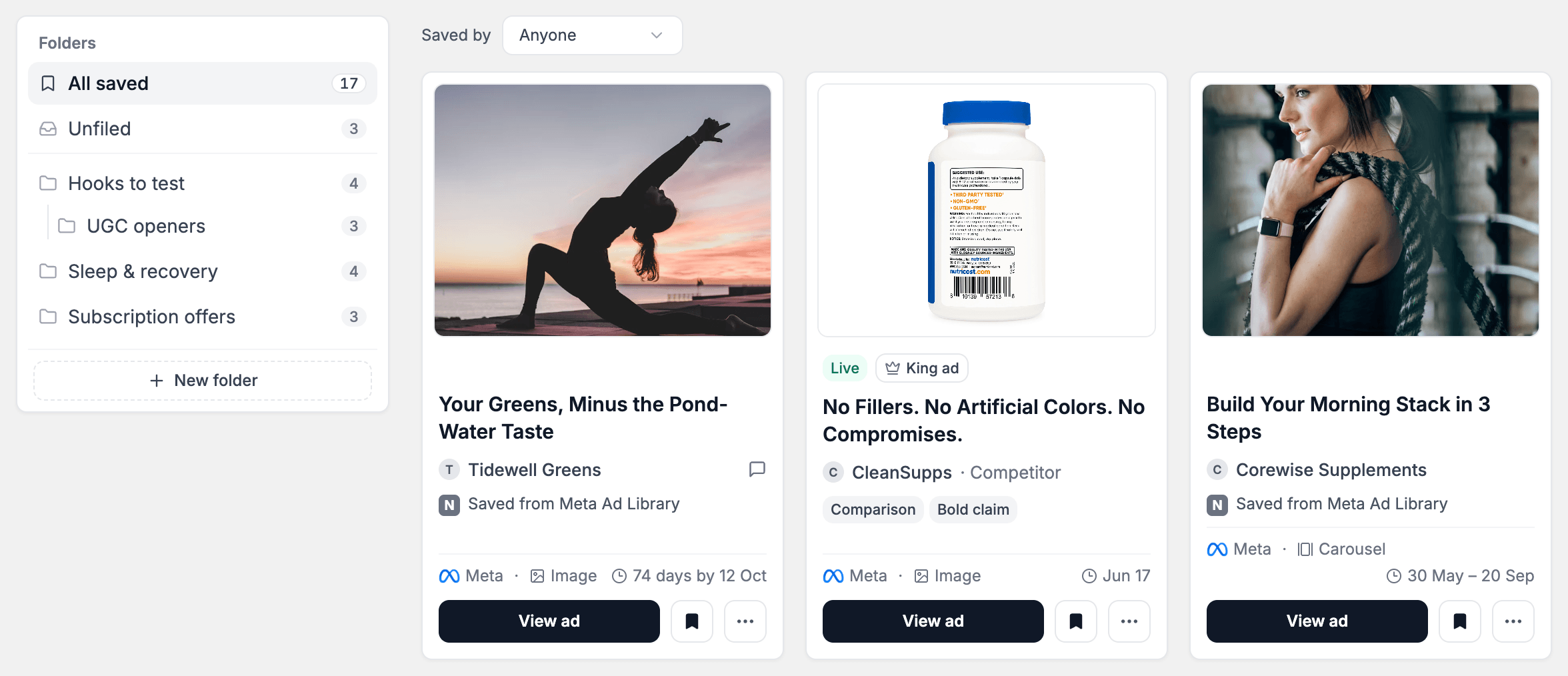
The Saved tab lists the ad saved last first. Its sort menu reads Sort: Recently saved until you pick another sort.
The ads your store saved with the Chrome extension also show on All ads. Under Likely winners first they take one turn around the brands with the other ads, so they show near the top, the newest save first. To see only them there, open More filters and pick Saved with the extension under Source. Source is on All ads only, and it clears when you change tab. When you remove the save, the ad leaves All ads and Saved. A save you make in the extension shows on both tabs when you come back to Nexus.
Show the ads one person saved
- Open Inspiration Library > Saved.
- Open Saved by above the ads.
- Pick Anyone, Me or a teammate. Each choice shows how many saved ads it holds in the folder you picked.
Saved by shows once your store has a saved ad. It lists each teammate who saved at least one ad. Your choice stays when you pick another folder, and Clear filters keeps it. It goes back to Anyone when you switch tabs.
Write a note
- Open a saved ad: click its card, or View ad.
- Under Note, click Add note, or Edit when the ad has a note.
- Type the note. The field says "Your team sees this note. Up to 500 characters."
- Click Save. Click Cancel or press Escape to keep the note as it was.
To remove a note, delete its text and click Save. On the Saved tab, a saved ad with a note shows a note icon after the brand. Point at it, or move to it with the keyboard, to see Has a note.
Move the ad to another folder
On the ad's page, click Move to folder under Folder. See Saved ad folders.
Read the details of an ad saved with the extension
- Open an ad that shows Saved from Meta Ad Library.
- Under Ad details, click Show details. Click Hide details to close them.
Remove an ad saved with the extension
WARNING
Removing the ad also deletes its folder and its note from your saved ads.
- On the ad's page, click Saved at the top right.
- In Remove from saved ads?, click Remove. Click Cancel to keep the ad.
Nexus then takes you back to the Saved tab.
Exact output
On the Saved tab, Saved by sits above the ads. A card of an ad saved with the extension shows these parts:
| Part | What it shows |
|---|---|
| Saved from Meta Ad Library | The Nexus mark and the place the ad came from, under the brand. |
| The date after the clock | For an ad that was running on the save day, how many days it had run by then. For an ad that had stopped, the days it ran. Point at it to read the full sentence. |
| The note icon | The ad has a note. |
Such a card shows no Live or Ended status. In the list view, its Status reads Active when saved or Inactive when saved.
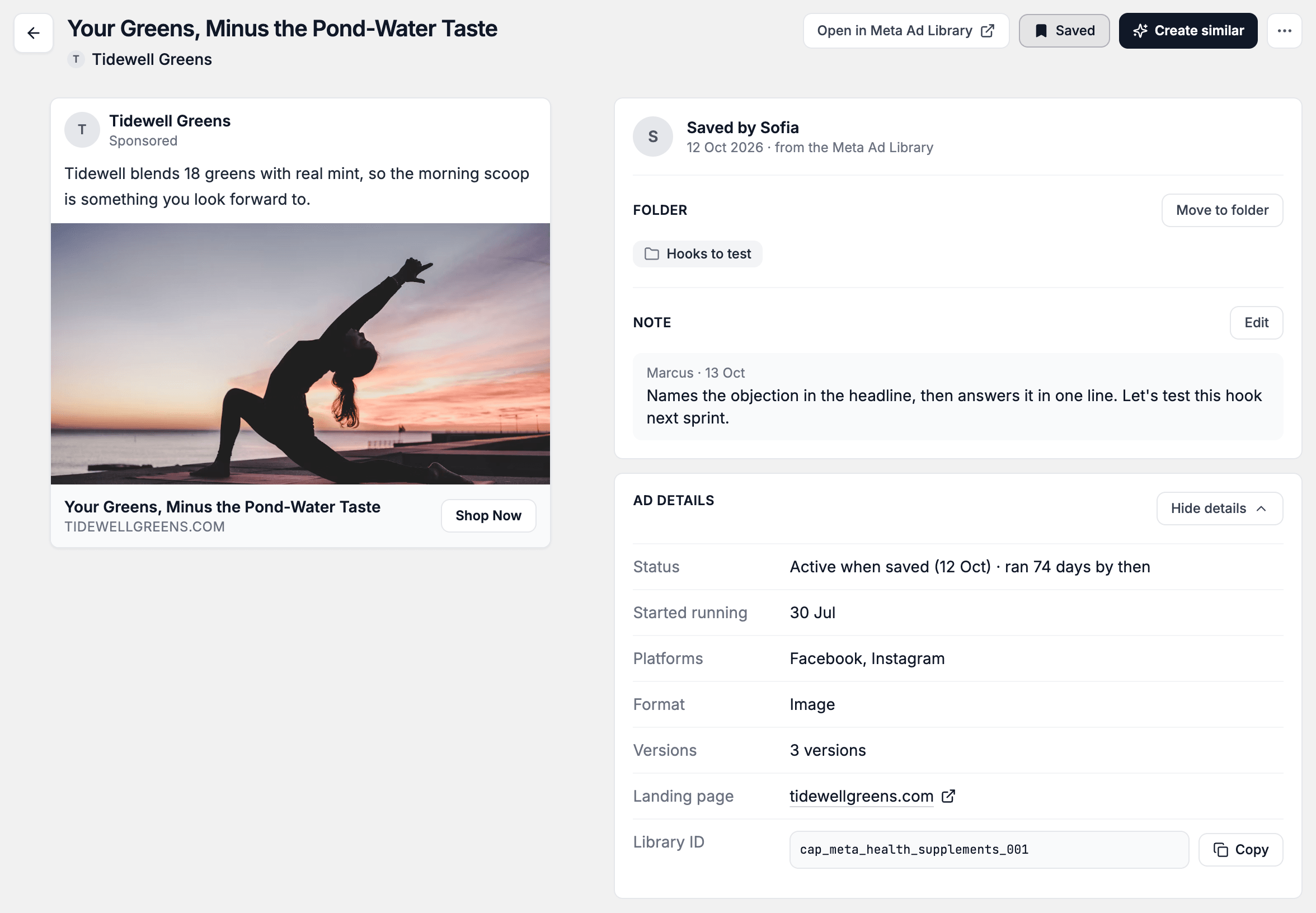
On a saved ad's page, a card on the right shows:
| Part | What it shows |
|---|---|
| Saved by you, or Saved by and a first name | Who saved the ad, the date, and "from the Meta Ad Library" or "in Nexus". |
| Folder | The folder the ad is in, with Move to folder. |
| Note | The note, with the first name of the person who wrote it and the date. "No note yet." when the ad has none. |
The page of an ad saved with the extension also shows every card of a carousel, and Open in Meta Ad Library, Saved and Create similar at the top right. Ad details holds these rows:
| Row | What it shows |
|---|---|
| Status | Active when saved with the save date and how many days the ad had run by then, or Inactive when saved with the days it ran. |
| Started running | The first day the ad ran. |
| Platforms | Where Meta showed the ad, such as Facebook and Instagram. |
| Format | Image, Video, Carousel or Text. |
| Versions | How many versions the ad has, when it has more than one. |
| Landing page | The page the ad links to. It opens in a new tab. |
| Library ID | The ad's number in the Meta Ad Library, with a button to copy it. |
What to do with it
| What you see | Decision or action | Owner |
|---|---|---|
| A teammate's saves under Saved by | Review them before you plan the next brief. | creative strategist |
| A saved ad with no note | Click Add note and write why you kept it. | creative strategist |
| An ad that had run for a long time by the save day | Study its hook and its offer for your next brief. | creative strategist |
| An idea worth testing | Click Create similar to start a creative batch. | creative strategist |
| An ad the team no longer needs | Remove it from your saved ads. | creative strategist |
Expected value and measurement
Names and notes can help your team reuse what it already found. They do not change ad results.
To check, open Saved, pick Me under Saved by, and count the cards that show the note icon. Ask a teammate to do the same before the next brief.
Limitations and exceptions
- The status and the running time of an ad saved with the extension are a snapshot of the save day. Nexus does not check the ad again.
- Such an ad never matches the Live status filter, and it sorts last under Longest running.
- Create similar opens a new creative batch with nothing of the saved ad in it. Nexus does not copy another brand's pictures or words.
- An ad saved with the extension has no Full analysis and no All their ads.
- An ad saved with the extension has no brand. On All ads it drops out while Brands, Industry or King ads only is on.
- An ad that Nexus already held when you saved it with the extension keeps its usual card. Its page says "in Nexus".
| You see | What to do |
|---|---|
| No ads saved by you yet. The same line names the teammate you picked under Saved by. It ends with "in this folder" when you picked a folder, and "without a folder" when you picked No folder. | Click Show all saves, or pick another person under Saved by. |
| Nexus is still saving the picture. | Wait a moment, then reload the page. |
| The picture isn’t available in Nexus. | Click Open in Meta Ad Library to see the ad there. |
| This ad is no longer available in your Inspiration Library. | Go back to the Saved tab. |
| Couldn’t load the ad. | Click Try again. |
When Nexus can't save a note, the message shows under the field and your text stays. Try again.
Demo Mode
In Demo Mode, the saved ads, their notes and the people who saved them are sample data. Nexus refuses a change to a note with "Disable demo mode to edit a note." It also refuses saving, removing and filing an ad, and tells you so. See Demo Mode and sample data.