
Appearance
Catalog Health: fix listings that hold products back
Catalog Health checks how complete and well presented each product listing is. It does not measure sales. A strong listing gives your ads and your store a better base. To open it, go to Insights > Products > Catalog Health.
Problem and intended user
The ecommerce manager (the person who runs the store) needs to know which product listings are weak. A listing with a weak title, no main image or an empty description can make a product harder to find and harder to advertise. The media buyer (the person who runs your paid ads) also needs listings that are ready before ad money goes to them. In a large catalog, it is hard to see which listings are the weakest.
Current workflow
Without Nexus, you open products one by one in Shopify admin and check each field by eye. Or you export the catalog to a spreadsheet and add your own columns for missing images, short titles and empty fields. Some stores check the channel and SEO fields in a separate review. A merchant with a review app reads review counts in that app's own dashboard.
Prerequisites
- Your Shopify catalog must be synced. Catalog Health works from the catalog alone, so it is readable while your order history still imports.
- If you changed products in Shopify, refresh the data first with Update data > Refresh updated products.
- For the Review Data criterion, connect a review app. See Review apps and CSV import. A product with no reviews is not penalized for it.
- Review Data changes after your review app syncs or you import a CSV. It does not change after Refresh updated products.
How Nexus works
Nexus reads your synced Shopify catalog and scores each product with fixed rules. No AI writes the score or the issues. Nexus does not edit your catalog. You make every change in Shopify.
How the score works
Each product gets a score from 0 to 100. The score is a weighted average of seven criteria.
| Criterion | Weight | What earns points |
|---|---|---|
| Image Coverage | 20% | A main image earns 80 points. Images on your variants add up to 20 more. No main image scores 0. |
| Title Quality | 15% | A clear title of about 30 to 80 characters with two to eight words. One-word, very short and all-caps titles lose points. |
| Description Quality | 15% | Length only. Longer copy earns more. An empty description scores 0. Copy of 500 characters or more reaches the top step. |
| Attribute Completeness | 15% | One share of points for each field you fill in: SKU, vendor, product type, tags, a price above 0, a compare-at price and a URL handle. |
| Channel Readiness | 15% | The product has a price, has an image, is published, tracks inventory and is in stock. |
| SEO Score | 10% | A readable URL handle, a title of the right length with keywords, tags, and a description of some length. |
| Review Data | 10% | Number of reviews plus average rating. Many poor ratings score lower than no reviews. |
If a product has no reviews, Nexus drops Review Data and shares its 10% across the other six criteria.
Find and filter products
Use these controls to narrow the list:
- Search products finds a product by name.
- All shows every product.
- Needs Attention (<60) shows products that score below 60.
- Campaign Ready (>80) shows products that score above 80.
When the table spans several pages, use the arrows under it. The list opens with the lowest scores first. Click Catalog Health in the header to reverse the order.
Fix a listing
Warning: you edit the listing in Shopify, not in Nexus. A score changes only after you refresh the data. Follow this order:
- Filter by Needs Attention (<60).
- Expand the first row and read the Critical issues.
- Edit the title, images, description or fields in Shopify.
- Back in Nexus, open Update data at the top of the page and choose Refresh updated products.
- Check that the score went up.
Fix the heavy criteria first. Image Coverage carries the most weight. A missing main image is the largest single loss.
Exact output
The overview
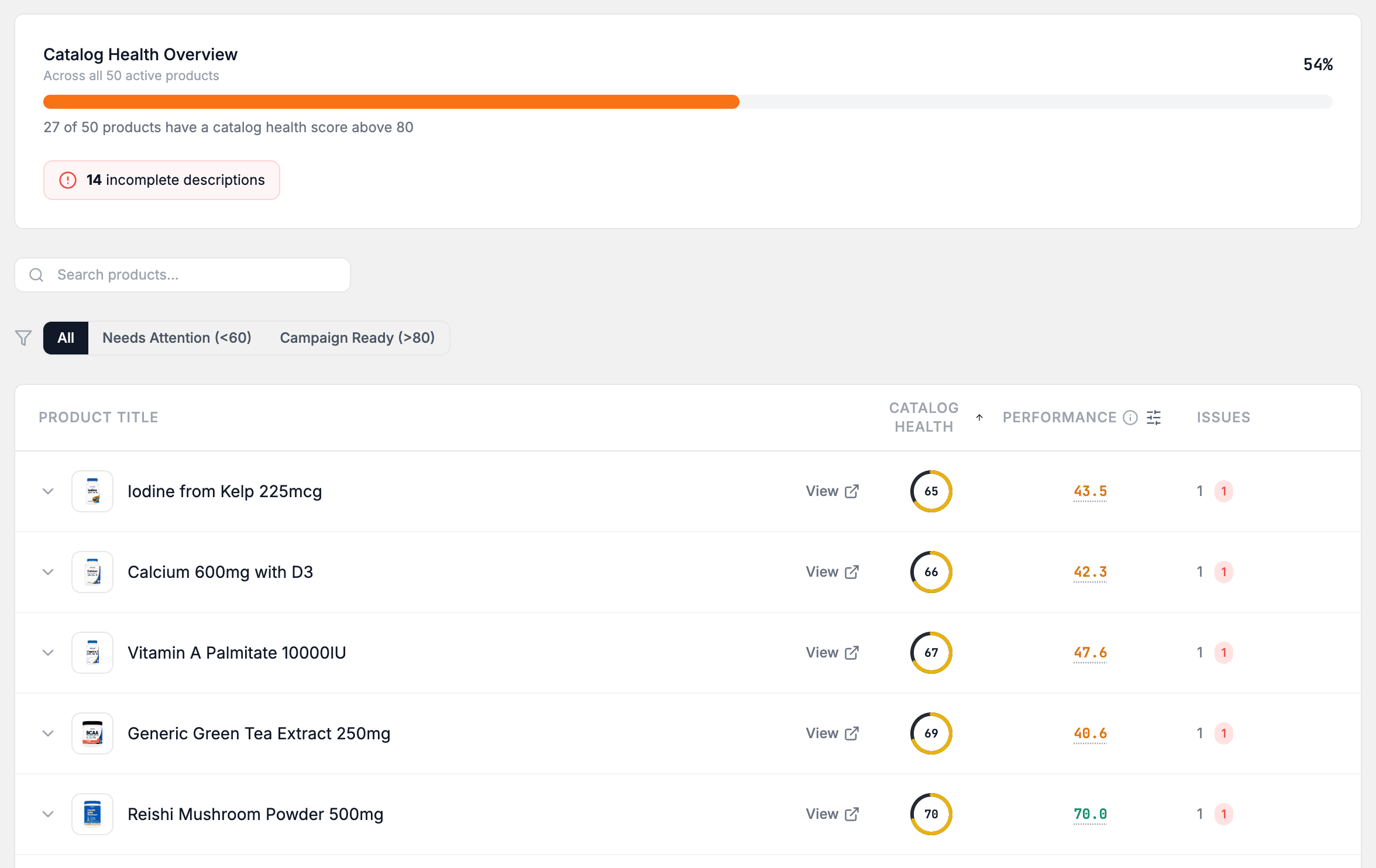
The Catalog Health Overview card sits at the top of the tab. It reads "Across all N active products". A bar shows the share of products with a score above 80. Below it, a line gives the count, for example "12 of 40 products have a catalog health score above 80". The overview ignores the search box and the filter buttons below it.
Below the bar, up to four badges count common problems:
- incomplete descriptions
- products with no images
- products missing SEO
- products that are not campaign-ready
A badge shows only when its count is above zero.
The summary card at the top of the page reads like "12 of 40 products need attention". It uses its own bar for "needs attention" and also counts products with a critical issue. Its count can differ from the Needs Attention filter.
The product table
The table lists products with Product Title, Catalog Health, Performance and Issues. The Issues column shows the number of issues and colored badges by severity. The View link on a row opens the product on your storefront in a new tab.
Performance is the product's Performance Score, the same number as in the Product List. It comes from how the product sells and how customers respond to it, not from the listing. It is not part of the catalog health score. A product with no Performance Score yet shows a dash. Select a score, or the sliders icon beside the Performance header, to open Performance Score weights. A click on a dash expands the row instead. The table still sorts and filters by Catalog Health only.
An opened row
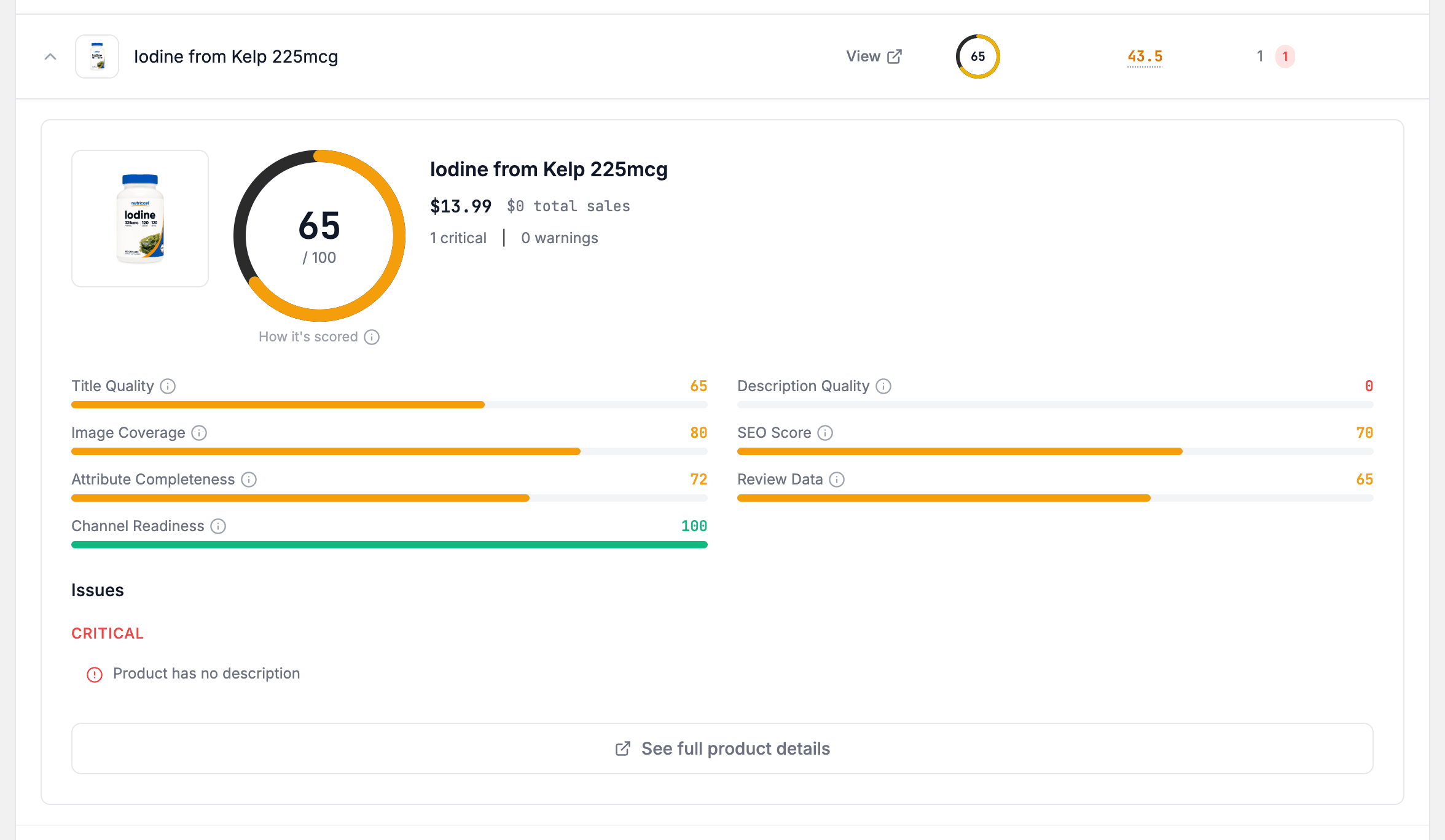
Click a row to expand it. The health card shows:
- The overall score out of 100. Select the info icon beside How it's scored to see how each criterion adds to the total, with the biggest losses first.
- One bar for each criterion. Select its info icon to see the points earned and lost, what raises the score, and what lowers it.
- An Issues list, grouped as Critical, Warning and Info.
- A See full product details button. See Product detail.
What to do with it
| What you see | Decision or action | Owner |
|---|---|---|
| A product under Needs Attention (<60) with a Critical issue | Fix the issue first. Edit the listing in Shopify, outside Nexus. | ecommerce manager |
| A low bar for Image Coverage | Add a main image and variant images. You make or choose the images in your design tool, then upload them in Shopify. | creative strategist (the person who plans and makes ad creatives) |
| A product counted as not campaign-ready, or a low Channel Readiness bar | Hold ad budget until the product has a price, an image, is published and is in stock. | media buyer |
| A product under Campaign Ready (>80) | Treat its listing as ready for ad spend. | media buyer |
| A low SEO Score or Description Quality bar | Rewrite the title or description in Shopify. | ecommerce manager |
| A high Performance score next to a low Catalog Health score | Fix that listing early. Customers already respond well to that product. | ecommerce manager |
| Edits you made in Shopify | Select Update data, then Refresh updated products, to see the new score. | ecommerce manager |
Expected value and measurement
Catalog Health can help you find and fix the listing gaps that hold a product back. A more complete listing can give your store and your ads a better base. The score measures listing quality, not sales.
To check the effect:
- Return to Insights > Products > Catalog Health after a refresh. Compare the product's score and its Issues list with what you saw before.
- Compare the count in the Catalog Health Overview line, for example "12 of 40 products have a catalog health score above 80".
- To see how ads for that product perform, open Performance > Ad performance and select By product. Compare the product's group before and after the fix.
Warning: sales can move for other reasons, such as ad changes, price changes or seasonal demand. Nexus cannot isolate the effect of a listing fix on sales.
Limitations and exceptions
- The catalog health score reads listing data only. It does not read sales, traffic or ad results. The Performance column is a separate number, built from sales and customer data.
- A product with no Performance Score yet shows a dash in Performance.
- The score uses fixed rules. It does not judge whether a title or an image is persuasive.
- The overview ignores the search box and the filter buttons. The summary card can show a different "needs attention" count than the Needs Attention filter.
- Of the filters above the tabs, only Collection narrows this tab. The search box, Category, Quadrant, Stock and Attribute filters do not. Use Search products and the filter buttons on the tab.
- If no product matches your search or filter, the table reads "No products match the current filter." Clear the search or select All.
- Until your Shopify catalog syncs, the tab cannot show scores. Wait for the sync to finish.
- Nexus has no button that fixes a listing for you.
- In Demo Mode, Refresh updated products is simulated. It does not sync anything.